Learning how to make AI videos is all about understanding the full AI video generation workflow from idea to finished video.
So instead of giving you another generic list of tools, we decided to create an AI video ourselves using Async and walk through the exact process step by step.
We used Veo 3.1 inside Async to generate a short cinematic clip of a tiny astronaut exploring a kitchen countertop at sunrise. Then we reviewed the prompt, generation settings, editing workflow, and export process exactly like a creator would when making content for social media.
In this guide, you’ll learn:
- How to create AI videos step by step
- How text to video AI workflows actually work
- How to write better AI video prompts
- Which AI video models are best for different styles
- How to edit and repurpose AI-generated clips
- How creators are using AI video makers for social media content
- How to make AI videos for free with beginner-friendly workflows
By the end, you’ll understand not just how to generate AI videos, but how to build a practical workflow you can actually reuse consistently.
How to make AI videos step by step
We wanted to test how beginner-friendly AI video generation actually is, so we opened Async and tried creating a short cinematic clip from scratch.
The goal was simple: create a visually interesting AI video using nothing but a prompt.
Here’s the exact workflow we used.
Step 1: Open the AI video generator
Inside Async, we started by clicking “Generate video.”
This opens the AI video workflow directly inside the editor, so you can move from prompting to editing without jumping between separate tools.
Step 2: Enter your AI video prompt
Next, we typed our prompt describing the video we wanted to create.
Here’s the prompt we used:
“Tiny astronaut walking across spilled coffee beans on a kitchen counter at sunrise, cinematic macro shot, realistic white space suit with glowing blue accents, warm golden lighting, shallow depth of field, soft steam rising from a coffee mug nearby, dramatic scale difference, ultra detailed textures, smooth slow camera push-in, cinematic movement, realistic reflections, cozy morning atmosphere, 4K cinematic AI video.”
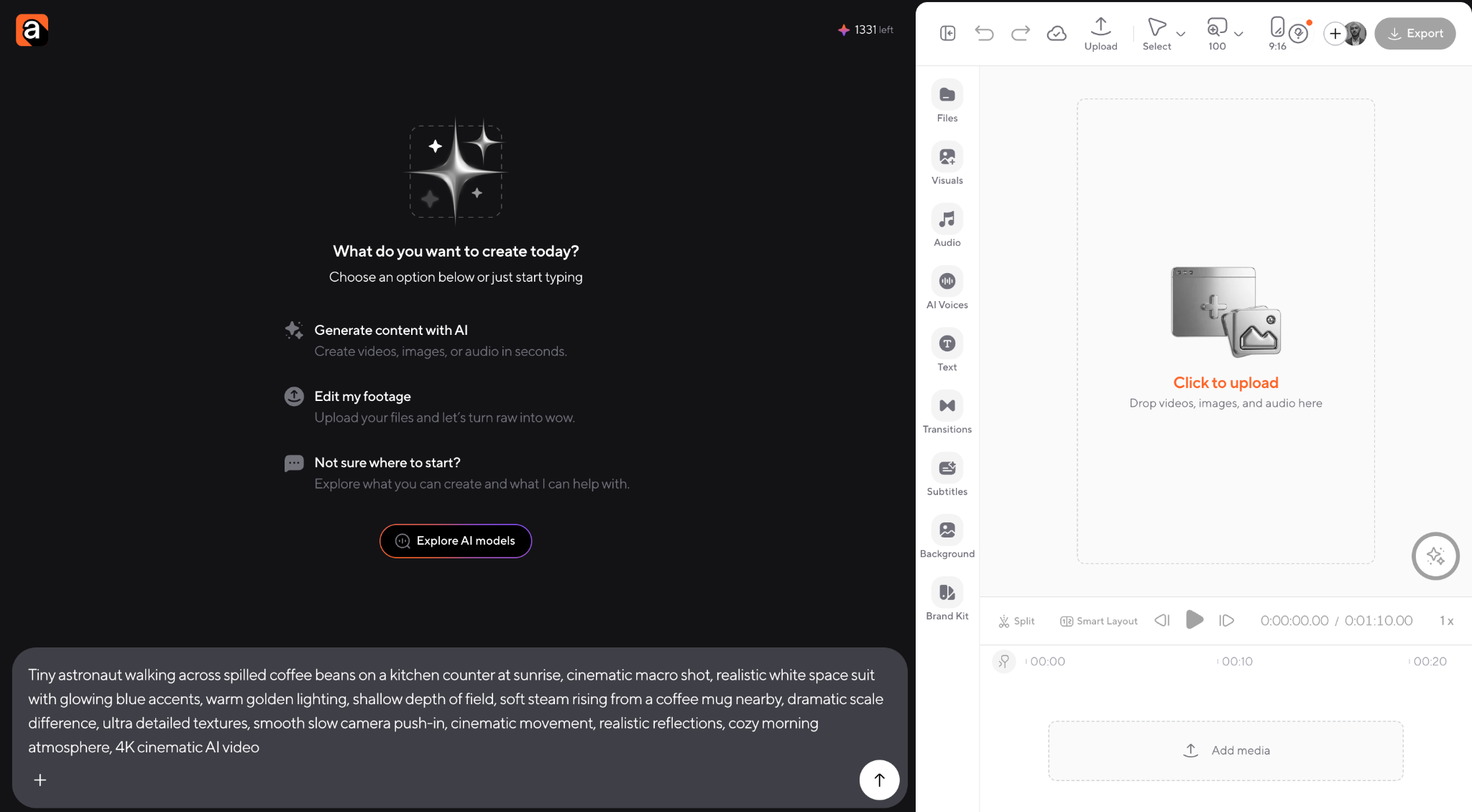
One thing we liked immediately was that Async keeps the workflow simple. You do not need complicated settings to get started if you are a beginner experimenting with text to video AI for the first time.
Step 3: Review the generation settings
Before generating the clip, Async automatically displayed the generation settings, including:
- The AI video model being used
- Resolution
- Aspect ratio
- Video duration
- The final prompt
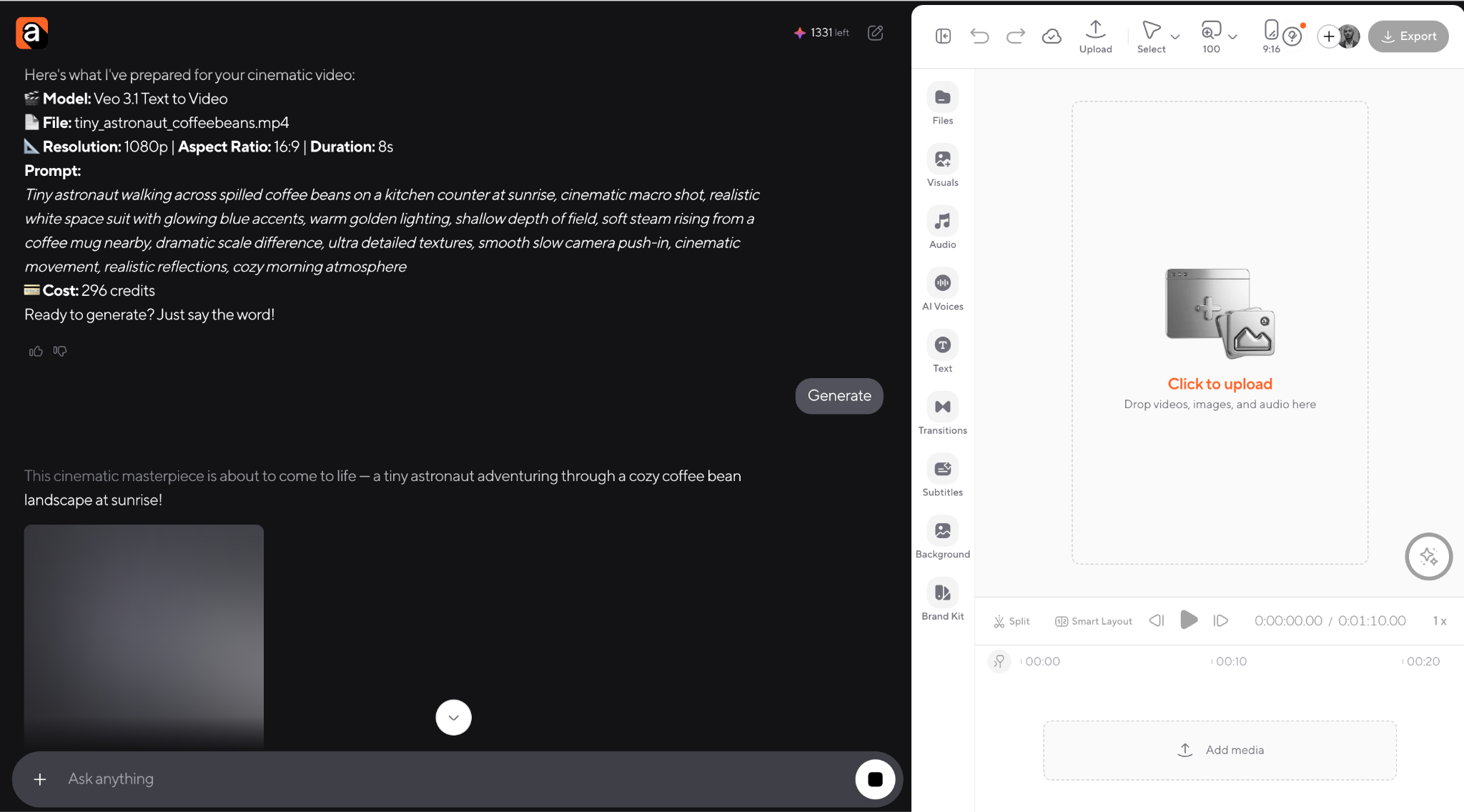
This is useful because different AI video models behave differently. Some are better for realism, while others are stronger for motion, cinematic shots, or stylized visuals.
Step 4: Generate the AI video
Once everything looked good, we simply clicked “Generate.”
If you do not want to tweak any settings manually, the default workflow is extremely beginner-friendly.
At this stage, Async processes the prompt and creates the video automatically using the selected AI model.
Step 5: Review and download the final video
After the generation finished, the clip appeared directly inside the video editor.
We opened the video to review the motion, lighting, framing, and overall quality before downloading it.
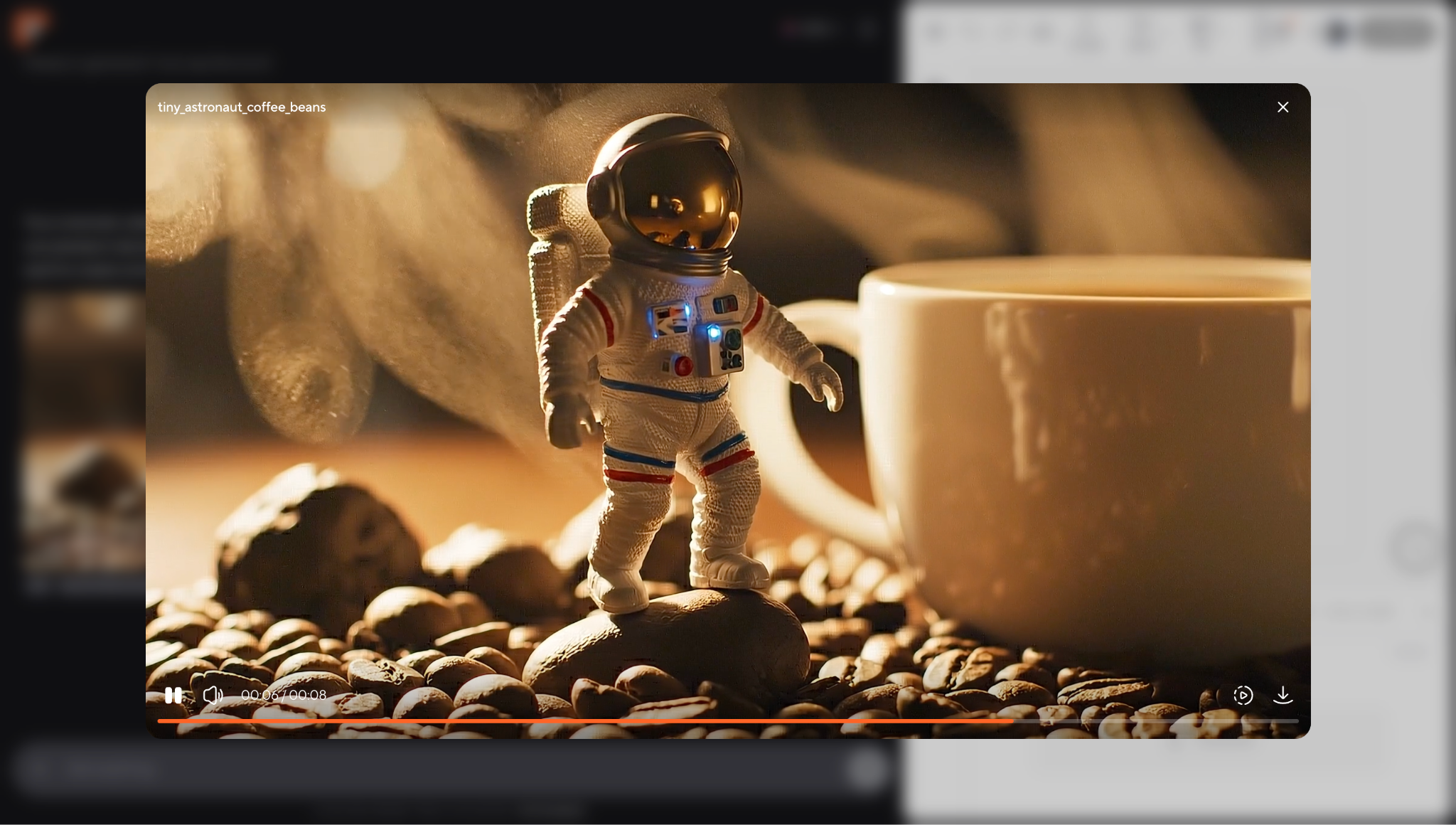
From here, you can continue editing the video, add captions, resize it for TikTok or Reels, combine it with other clips, or export it immediately for social media.
Here’s a sneak peek at our final result. 👀
How to write AI video prompts
One of the biggest things beginners misunderstand about AI video generation is that better prompts usually matter more than complicated settings.
Most modern AI video generators already handle animation, motion, lighting, and scene composition automatically. Your job is to guide the model clearly enough that it understands the style, movement, atmosphere, and pacing you want.
The easiest way to improve AI video quality is to think less like you are typing keywords into a search engine and more like you are describing a shot to a director.
A strong AI video prompt usually includes:
- Subject
- Environment
- Camera movement
- Lighting
- Style
- Mood
- Motion
- Video quality
For example, instead of writing:
“astronaut in kitchen”
You can write:
“Tiny astronaut walking across spilled coffee beans on a kitchen counter at sunrise, cinematic macro shot, warm golden lighting, shallow depth of field, realistic reflections, slow camera push-in, ultra realistic.”
That extra detail gives the AI video model far more visual direction.
Here are some practical AI video prompt examples creators can use across different formats.
Tips for writing better AI video prompts
If your AI-generated videos look inconsistent or low quality, the issue is often the prompt structure rather than the AI model itself.
A few simple adjustments can improve results dramatically:
- Be specific about camera movement
- Mention lighting conditions
- Describe the mood clearly
- Avoid overly long, complicated prompts
- Focus on one scene at a time
- Include visual style references naturally
- Mention pacing and motion when relevant
Most creators improve their AI video prompts through experimentation. Small wording changes can completely change how the final video looks and moves.
AI video models breakdown
One of the biggest reasons AI-generated videos can look completely different from one another is that different AI video models are optimized for different types of content.
Some models focus on cinematic realism. Others prioritize faster motion, stylized visuals, social content, or rapid generation speeds.
That’s why understanding the strengths of each model matters almost as much as learning how to write prompts.
For our test video inside Async, we used Veo 3.1 to generate a cinematic macro-style scene of a tiny astronaut exploring a kitchen countertop. The model handled lighting, environmental detail, and camera movement especially well, which made it a strong fit for cinematic storytelling prompts.
Here’s a quick breakdown of some of the AI video models creators are currently using most often.
Veo 3.1: Best for cinematic realism and storytelling
Veo 3.1 is one of the strongest AI video models currently available for creators who want cinematic-looking results with more natural motion and stronger scene composition.
What makes it stand out is how well it understands:
- Lighting direction
- Environmental atmosphere
- Camera movement
- Motion consistency
- Realistic textures
- Cinematic pacing
That makes Veo 3.1 especially useful for:
- Storytelling videos
- Concept scenes
- Short films
- Cinematic social content
- Mood-driven visuals
- High-end product visuals
The model also handles detailed prompts surprisingly well, which gives creators more control over shot composition and atmosphere compared to many faster-generation models.
For beginners, this often means the video looks more polished even before editing starts.
Seedance: Best for stylized motion and social content
Seedance models are typically stronger for energetic visuals, stylized movement, and short-form content designed for platforms like TikTok, Instagram Reels, and YouTube Shorts.
Compared to highly cinematic models, Seedance often prioritizes:
- Faster motion
- Stronger visual energy
- Stylized animation
- More dynamic movement
- Social-friendly pacing
That makes it useful for:
- AI reels
- Trend-based content
- Fashion edits
- Music visuals
- Creator content
- Experimental social clips
Many creators use Seedance when they want videos that feel more visually aggressive or fast-paced rather than slow and cinematic.
Hailou: Best for experimentation and fast idea generation
Hailou models are often useful for creators who want to test ideas quickly and experiment with different visual concepts.
These models are commonly used for:
- Fast concept generation
- Creative experimentation
- Mood testing
- Early-stage ideation
- Stylized scenes
- Quick social visuals
Instead of spending large amounts of time refining a single cinematic shot, creators can rapidly test multiple prompt directions and visual styles.
This is especially useful during brainstorming workflows when speed matters more than perfect realism.
Which AI video model should beginners use?
If you are just starting out, the best AI video model depends more on your content style than your technical skill level.
A good starting point looks like this:
- Use Veo 3.1 for cinematic storytelling and realistic scenes
- Use Seedance for energetic social media content
- Use Hailou for creative experimentation and fast iterations
The good news is that modern AI video workflows make switching between models much easier than before.
Inside Async, creators can experiment with different AI video models directly inside the same workflow instead of rebuilding projects from scratch across multiple tools.
That flexibility matters because AI video generation is still evolving quickly, and different models often perform better depending on the type of content you are creating.
If you want a deeper comparison of the latest AI video generation models, you can also explore Async’s recent breakdown covering Veo, Seedance, Hailou, and other newer generation workflows.
How to keep AI-generated videos consistent
One of the biggest challenges with AI video generation is consistency.
You might write a great prompt, generate a beautiful first clip, and then struggle to make the second clip look like it belongs in the same video. The character may change slightly, the lighting may shift, the camera style may feel different, or the environment may not match the original scene.
That does not mean the workflow is broken. It just means AI video generation works best when you treat every clip as part of the same visual system.
Before generating multiple clips, define a few creative rules:
- Main subject
- Visual style
- Lighting style
- Camera movement
- Color palette
- Mood
- Aspect ratio
- Video length
- Level of realism
For example, for our tiny astronaut video, we would not generate the first shot as a cinematic macro scene and the second as a cartoon animation unless that contrast was intentional.
A more consistent follow-up prompt would be:
“Tiny astronaut climbing over giant keyboard keys on a desk, same realistic white space suit with glowing blue accents, cinematic macro photography, warm morning sunlight, shallow depth of field, slow camera push-in, cozy realistic atmosphere.”
Notice how the second prompt repeats the important creative details from the first one. That helps the AI model stay closer to the same world.
If you want to build a full AI video workflow, consistency matters more than generating one impressive shot. The goal is to make every scene feel like it belongs to the same story.
How to edit AI videos after generation
AI video generation gives you the raw material, but editing is what makes the final video feel finished.
Even if the clip looks beautiful, you may still need to trim the timing, add captions, adjust the format, combine multiple clips, add music, or prepare different versions for different platforms.
This is where AI video editing becomes part of the workflow rather than a separate final step.
After generating the video inside Async, we opened the finished clip in the editor to review it before exporting. From there, a creator could continue refining the video depending on where it will be published.
For example, you might:
- Trim the opening so the video starts faster
- Add subtitles for silent viewers
- Resize the video for TikTok, Reels, or Shorts
- Add music or voiceover
- Combine several AI-generated clips into one story
- Add text overlays or a hook
- Export the final version for social media
This part matters because AI-generated clips often look better when they are shaped into a real content format.
A cinematic clip can become a Reel. A product visual can become an ad. A talking-head avatar can become an explainer. A generated background can become part of a larger branded video.
The generation step creates the asset. The editing step turns it into content.
AI videos are everywhere now, which means creators need to think beyond “this looks cool.”
A visually impressive AI clip might make someone stop scrolling, but it still needs a clear reason to exist. The best social media AI videos usually have a hook, a format, and a point of view.
For short-form platforms, think about the video in three parts:
- The hook
- The visual payoff
- The reason to watch until the end
For example, our tiny astronaut clip could become more than just a nice cinematic scene. It could be turned into a Reel with a caption like:
“This is what making coffee feels like before 9 AM.”
Or:
“POV: you are a tiny astronaut exploring Monday morning.”
That instantly gives the clip a social format. The AI-generated video becomes part of a joke, mood, story, or relatable moment.
Creators can also use AI videos for:
- Visual hooks
- Background loops
- Concept trailers
- Product teasers
- Music visuals
- Mood boards
- Educational explainers
- Brand storytelling
- Instagram Reels
- TikTok videos
- YouTube Shorts
The key is to avoid treating AI video as the whole idea. Use it as the visual engine behind a stronger creative concept.
What to check before using AI videos commercially
Commercial use is one of the biggest questions creators and brands have about AI-generated videos.
The short answer is: always check the tool’s usage terms, the model’s commercial rights, and the content of the video itself before publishing it for business purposes.
This matters because commercial use depends on more than whether the video was generated successfully.
Before using an AI-generated video in ads, client work, product pages, sponsored posts, or brand campaigns, check:
- Whether the platform allows commercial use
- Whether the model has any usage restrictions
- Whether the video includes recognizable people, logos, brands, or copyrighted characters
- Whether the prompt references a living artist, celebrity, or protected style too closely
- Whether you need to disclose AI involvement
- Whether the content could mislead viewers
As a simple rule, avoid generating videos that imitate real people, copy existing characters, recreate copyrighted scenes, or suggest something happened in real life when it did not.
For brand-safe workflows, create original prompts, use your own assets when needed, review the output carefully, and keep records of the prompt and generation settings.
That way, AI video becomes a creative production tool, not a legal guessing game.
When should you disclose that a video was made with AI?
AI disclosure is becoming a bigger part of the creator workflow, especially when videos look realistic.
If your video is obviously animated, unrealistic, or clearly stylized, disclosure may not always be necessary depending on the platform. But if the video shows realistic people, realistic events, altered footage, synthetic speech, or anything that could be mistaken for real, it is safer to label it clearly.
For creators, this is not just about following rules. It also helps build audience trust.
You can disclose AI-generated content by:
- Using the platform’s AI content label when available
- Adding a short note in the caption
- Including “AI-generated” in the video description
- Avoiding misleading claims about how the video was made
For example, if you create an AI-generated product concept video, you might write:
“AI-generated concept video created for visual inspiration.”
That keeps the post transparent without making the content feel overly technical.
As AI video becomes more realistic, creators who are clear about how they use it will likely have an easier time building trust with viewers, clients, and platforms.
Common beginner mistakes when making AI videos
AI video generation is beginner-friendly, but there are a few mistakes that can make results look messy or unusable.
- The first mistake is writing prompts that are too vague.
A prompt like “make a cool video” gives the model almost no direction. A better prompt describes the subject, setting, motion, lighting, mood, and style.
- The second mistake is trying to do too much in one clip.
If your prompt includes five characters, three camera movements, a scene change, dialogue, weather, action, and a style shift, the output may become confusing. One scene per prompt usually works better.
- The third mistake is ignoring the aspect ratio.
A cinematic horizontal prompt may not work well for TikTok or Reels unless you plan for vertical framing from the start.
- The fourth mistake is skipping the edit.
AI-generated videos still benefit from trimming, captions, music, pacing, and formatting. The generated clip is not always the final publish-ready asset.
- The fifth mistake is not saving prompts.
If a result works well, save the prompt. You can reuse the same structure for future videos and adjust the subject, location, motion, or mood.
The best AI video workflow is not about getting one lucky result. It is about learning what prompt structures, models, and editing steps consistently produce usable videos.
Ready to make your first AI video?
The easiest way to learn how to make AI videos is to start with one simple idea.
Write a clear prompt, choose the right model, generate your clip, and use the editor to polish it for the platform you want to publish on.
That’s the workflow we followed in Async: we turned a playful prompt into a cinematic AI video with Veo 3.1, reviewed the result, and prepared it for export in the same editor.
Start small, experiment often, and treat each prompt as a creative test.
With Async, you can move from idea to generated video to final edit in one place, so creating your first AI video feels a lot less complicated.
FAQ:
Can AI make videos?
Yes, AI can make videos from text prompts, images, scripts, or existing footage. You can describe the scene you want, choose a model, and let the AI generate the video for you. Some tools also help with editing, captions, voiceovers, resizing, and exporting, so the workflow does not stop at generation. Think of it less like pressing a magic button and more like giving creative direction to a very fast video assistant.
How do I make an AI video from text?
To make an AI video from text, start with a clear prompt that describes the subject, setting, style, lighting, motion, and camera movement. Then enter that prompt into a text to video AI tool, review the generation settings, and generate your clip. After that, you can edit the video, add subtitles or music, and export it for your chosen platform. The better your prompt, the less guessing the AI has to do.
How do I turn an image into an AI video?
To turn an image into an AI video, upload your image to an image to video AI tool and describe how you want the scene to move. For example, you can ask for a slow zoom, moving clouds, waving hair, blinking lights, or cinematic camera motion. The image gives the AI the visual starting point, while your prompt tells it what kind of movement to add. This is great when you want more control over the first frame.
What is the best AI video generator for beginners?
The best AI video generator for beginners is one that keeps the workflow simple. Look for a tool that lets you write a prompt, generate the video, review the result, edit it, and export it without switching between too many apps. Async is beginner-friendly because you can move from AI video generation to editing in the same workspace, which makes the whole process feel less intimidating.
Can I make AI videos for free?
Yes, many AI video tools offer free plans, trials, or limited generations, so you can test the workflow before paying. Free options may come with limits like shorter video duration, watermarks, fewer model choices, or lower export quality. That said, they are still useful for learning how prompts work, testing ideas, and figuring out what kind of AI video workflow fits your content style.
How do I write AI video prompts?
Start by describing one clear scene. Include the subject, location, action, visual style, lighting, camera movement, and mood. For example, “tiny astronaut walking across coffee beans, cinematic macro shot, warm sunrise lighting, slow camera push-in” is much stronger than “astronaut video.” Keep your prompt focused, avoid stuffing in too many ideas, and save the prompts that work well so you can reuse the structure later.
Can AI videos include audio?
Yes, some AI video models and tools can generate videos with audio, while others focus only on visuals. Depending on the workflow, you may be able to add music, voiceover, sound effects, or generated audio after the video is created. Even when the original clip has no sound, adding audio during editing can make it feel much more finished, especially for social media, ads, explainers, and storytelling content.
Are AI videos good for social media?
Yes, AI videos can work really well for social media when they have a clear hook. A beautiful AI clip is nice, but a beautiful AI clip with a funny caption, useful idea, or strong visual payoff is much better. Creators can use AI videos for Reels, TikToks, Shorts, product teasers, mood boards, visual loops, storytelling clips, and background content. Just make sure the format fits the platform.
Do AI videos need editing?
Usually, yes. AI can generate the clip, but editing makes it feel publish-ready. You may still need to trim the beginning, add captions, resize the video, include music, adjust pacing, or combine multiple clips into one story. Editing is where a generated asset becomes actual content. Even a strong AI video can perform better when it is polished for the audience and platform you are creating for.
Can I use AI-generated videos commercially?
In many cases, yes, but always check the tool’s terms before using AI-generated videos commercially. Usage rights can vary depending on the platform, model, plan, and content you generate. Avoid using copyrighted characters, real people without permission, brand logos, or misleading realistic scenes. For client work, ads, or branded campaigns, it is safest to use original prompts, review outputs carefully, and keep the workflow transparent.
PakarPBN
A Private Blog Network (PBN) is a collection of websites that are controlled by a single individual or organization and used primarily to build backlinks to a “money site” in order to influence its ranking in search engines such as Google. The core idea behind a PBN is based on the importance of backlinks in Google’s ranking algorithm. Since Google views backlinks as signals of authority and trust, some website owners attempt to artificially create these signals through a controlled network of sites.
In a typical PBN setup, the owner acquires expired or aged domains that already have existing authority, backlinks, and history. These domains are rebuilt with new content and hosted separately, often using different IP addresses, hosting providers, themes, and ownership details to make them appear unrelated. Within the content published on these sites, links are strategically placed that point to the main website the owner wants to rank higher. By doing this, the owner attempts to pass link equity (also known as “link juice”) from the PBN sites to the target website.
The purpose of a PBN is to give the impression that the target website is naturally earning links from multiple independent sources. If done effectively, this can temporarily improve keyword rankings, increase organic visibility, and drive more traffic from search results.
